Programming the Fri3d Camp 2024 Badge with Claude Code
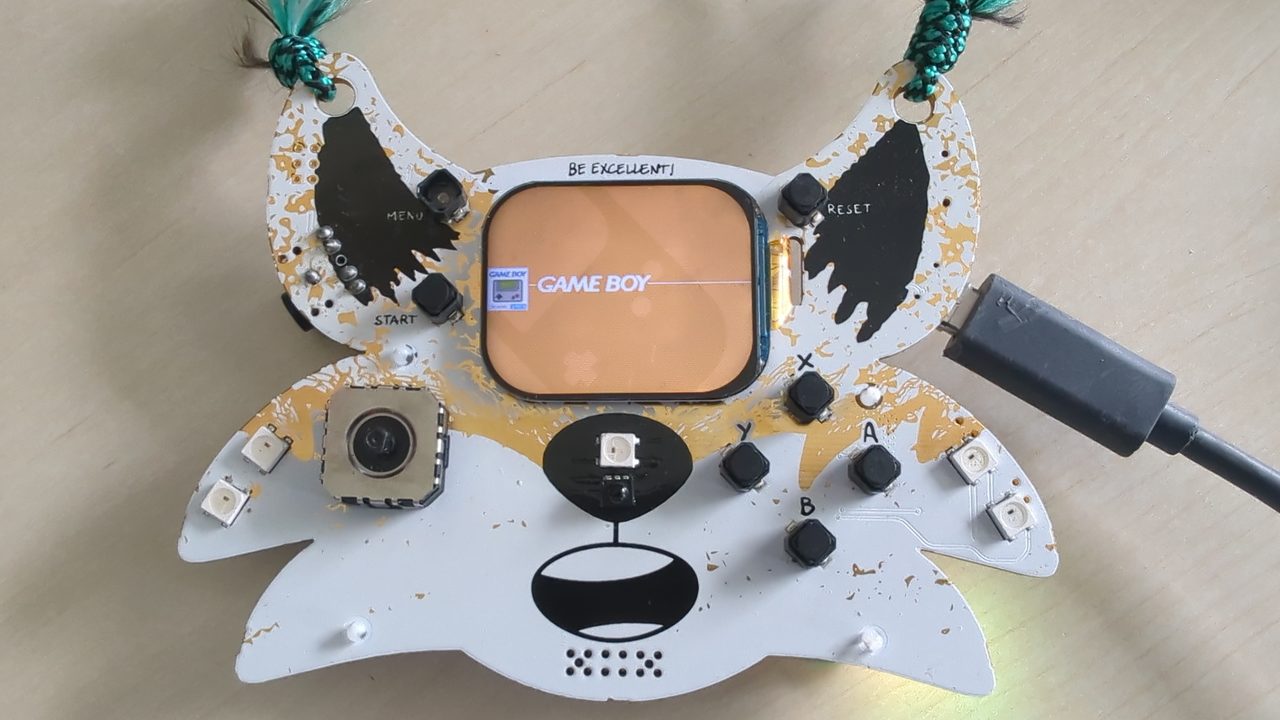
Every Fri3d Camp hands out a badge, and the 2024 one is a serious little machine: an ESP32-S3 with a 2-inch colour LCD, five NeoPixels, a joystick, a buzzer, an IMU and a microSD slot — all in a Game-Boy-ish shell that boots straight into a retro game emulator. It’s a lovely object. But the thing that excited me most wasn’t playing Doom on it; it was the idea of writing my own software for it. And this time, rather than fighting datasheets alone, I paired up with Claude Code on the terminal.
This post is a hands-on guide to programming the badge yourself — the connection, the backup, the firmware model, and how to write and install a real app — with Claude Code doing the reading, the probing and the iteration alongside you.
What the badge actually is#
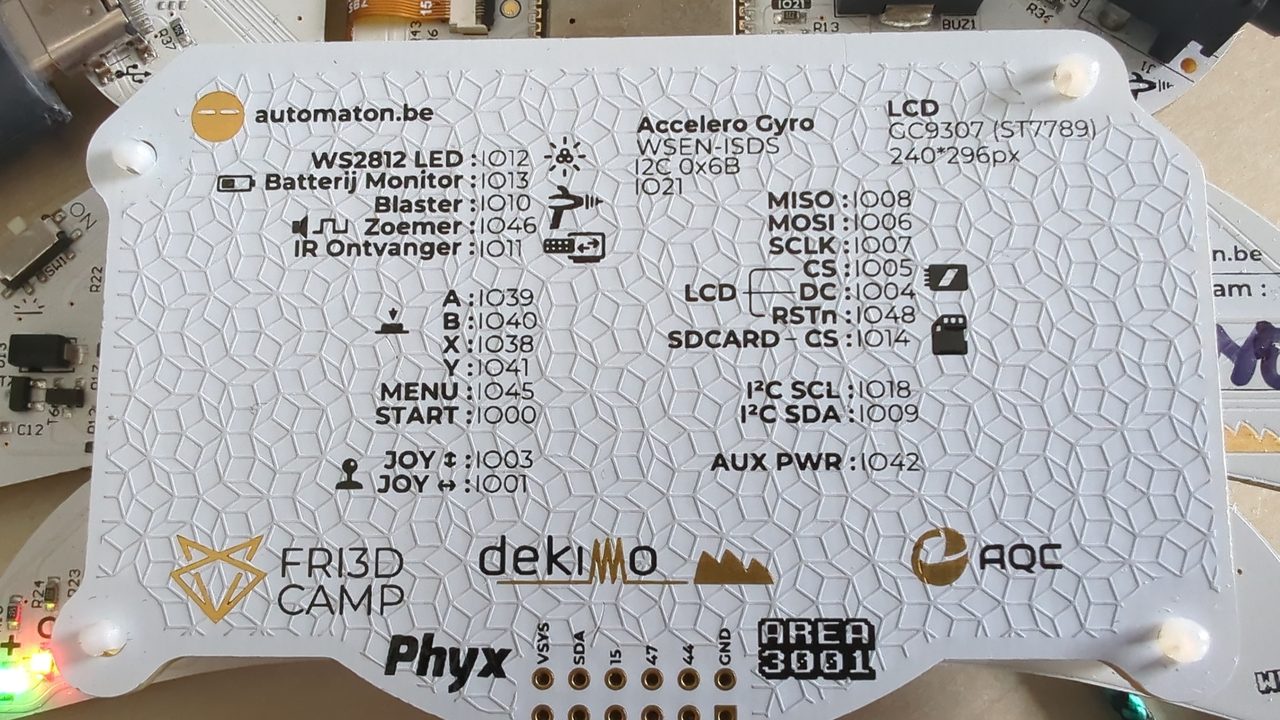
Under the plastic it’s an ESP32-S3-WROOM-1, N16R8V — 16 MB of flash, 8 MB of
PSRAM, dual-core Xtensa at 240 MHz, Wi-Fi + Bluetooth LE. The screen is a GC9307
(ST7789-compatible) IPS panel at 296×240, driven through lvgl v9. It shows
up over USB-C as a native USB-Serial/JTAG device, so on Linux it’s /dev/ttyACM*
(not ttyUSB* — there’s no UART bridge chip).
The whole project is open source, which is what makes this workflow possible. The authoritative references are on GitHub:
Fri3dCamp/badge_2024— the documentation site source (served here )Fri3dCamp/badge_2024_micropython— a MicroPython fork plus thefri3dhardware libraries (the default firmware source)Fri3dCamp/badge_firmware— prebuilt releases and the web flasherFri3dCamp/badge_2024_arduino— the Arduino board package, which has the authoritative pin map
The reason that matters: when I told Claude Code to “figure out how to write an app for this badge,” the first thing it did was clone those repos and read them. That’s the whole trick. Everything below came out of that conversation.
Why Claude Code for hardware hacking?#
Normally, programming a new board is a lot of context-switching: skim the docs,
grep through example code, keep a serial terminal open, paste snippets, see what
crashes, repeat. Claude Code collapses that loop. It can read the firmware source,
write MicroPython, talk to /dev/ttyACM0 directly through a small script it writes,
watch the output, and fix what broke — all in one terminal.
The key insight is that you give it two things: the source code (so it stops guessing about APIs) and access to the serial port (so it can actually try things on the real device). Get those two right and the badge becomes surprisingly tractable.
Step 1 — Connect and back it up first#
Plug in the badge over USB-C. On Linux it appears as /dev/ttyACM0. You need to be
in the dialout group to open it without sudo:
sudo usermod -aG dialout $USER # then log out and back inInstall esptool and confirm the chip answers:
pip install --user esptool
esptool --port /dev/ttyACM0 flash-id
Before changing anything, make a full backup of the flash. This badge is an ESP-IDF OTA device — there are several app partitions and it’s easy to get it into a state you didn’t intend. A byte-for-byte dump means every experiment is reversible.
Here’s the gotcha that cost me an afternoon: the ESP32-S3’s stub flasher drops
packets over the native USB-Serial/JTAG link on reads larger than about 512 KB.
A naive read-flash 0 0x1000000 dies a few percent in with “Packet content transfer
stopped”. The fix is to read in ROM mode (--no-stub) in 2 MiB chunks, chaining
them with --before no-reset so the chip stays in download mode and the firmware
never boots mid-read:
mkdir -p parts && cd parts
for i in 0 1 2 3 4 5 6 7; do
  off=$(( i * 2097152 ))
  b="no-reset"; [ "$i" = 0 ] && b="default-reset"
  esptool --port /dev/ttyACM0 --no-stub --before "$b" --after no-reset \
          read-flash --no-progress "$off" 2097152 "part_$(printf '%03d' $i).bin"
done
cat part_*.bin > ../badge-full-flash.bin
Re-read the chunks and cmp them to be sure, then keep badge-full-flash.bin safe.
To restore it later, exactly as it was:
esptool --port /dev/ttyACM0 write_flash 0x0 badge-full-flash.binThis is the single most important step. With a backup in hand, you can’t really brick the badge.
Step 2 — Understand the firmware model#
The badge ships with the “Fri3d App”: a small menu that offers OTA Update,
MicroPython and Retro-Go Gaming (the emulator launcher that runs Game Boy,
NES and Doom). Under the hood it’s the standard ESP-IDF OTA scheme — several app
partitions (ota_0…ota_3), with an otadata partition selecting which one boots.
That means “run my code” isn’t a matter of flashing one binary; it’s a matter of
booting the MicroPython partition and then writing Python that lives on the
filesystem. The MicroPython build ships a fri3d package of hardware wrappers
(the LCD, the buttons, the LEDs, the buzzer, the IMU), a user/ folder for your
code, and a main.py entry point.
Step 3 — Get into MicroPython#
From the Fri3d App menu you can select MicroPython and press the A button. The
badge reboots and spends about a minute extracting the fri3d package to its
filesystem — don’t interrupt it. When it’s done you get a >>> REPL over USB.
Two traps worth knowing:
- OTA anti-rollback is active. A freshly-selected app boots “pending verify” and
reverts on the next reset unless you confirm it. Once you’re in MicroPython, run
this once to make it stick:
import esp32 esp32.Partition.mark_app_valid_cancel_rollback() - The MENU button on my badge is physically broken. It turned out not to matter: menu navigation uses Y (down) and A (choose), so MENU is never required.
Once the REPL is up, the easiest way to see that everything works is a one-file
hardware test. I keep a verified one in
the repo
— hardware_test.py
lights up the LCD, the five NeoPixels, the buzzer, reads every button, the joystick,
the IMU, the battery and the SD card. If that runs, your toolchain is good.
Step 4 — Write a real app (the fri3d framework)#
The nice surprise is that the badge has a proper little application framework.
You drop a folder into /user/, give it an app.json, subclass App, and it shows
up as a selectable program. The structure is:
/user/my_app/
├── __init__.py     # exports your app class
├── app.json        # metadata: name, class, hidden?
└── my_app.py       # the app itself
app.json is tiny:
{ "name": "My App", "cls": "MyApp", "hidden": false }And the app is an async class with a start() coroutine (it has to be cooperative
— await asyncio.sleep_ms(...) — because a shared event loop drives the display):
from fri3d.application import App, AppInfo, Managers
import lvgl as lv

class MyApp(App):
    def __init__(self, info: AppInfo, managers: Managers):
        super().__init__(info, managers)

    async def start(self):
        scr = lv.screen_active()
        lbl = lv.label(scr)
        lbl.set_text("Hello from my app!")
        lbl.align(lv.ALIGN.CENTER, 0, 0)
        # ...wait for a button, then return to go back to the menu
The app framework discovers your folder automatically and the built-in launcher lists it. Buttons are mapped to lvgl keys (A = Enter, B = Esc, X = Next, Y = Prev, START = End), so a menu is just focusable widgets on the default group.
For anything graphical: lvgl v9 is in there, the display is RGB565 at 16-bit,
and lv.image accepts an inline buffer — so pixel art is a bytearray wrapped in an
image_dsc_t. The largest compiled-in font is Montserrat 24, so for big text you
draw your own bitmap font (which is more fun anyway).
Step 5 — Iterate fast with Claude Code#
This is where the workflow pays off. MicroPython caches imported modules, so each
time you change code you want to upload and reset, then see what happened.
Rather than do that by hand, Claude Code wrote itself a tiny paste-mode runner
(tools/badge_run.py in the repo) that drives /dev/ttyACM0 directly:
python3 tools/badge_run.py upload my_app.py /user/my_app/my_app.py
python3 tools/badge_run.py reset
python3 tools/badge_run.py run_for test.py 10     # run for 10 s and capture the log
The loop then becomes: change a file → upload → reset → read the serial log →
fix the traceback → repeat, all without me typing a single mpremote command.
When I needed to know whether lv.canvas or lv.image existed in this exact
build, Claude Code just ran a probe on the device and told me the working API
call. That’s not something you get from reading docs.
A prompt you can steal#
The whole session started from one prompt, roughly:
I have a Fri3d Camp 2024 badge on /dev/ttyACM0. Clone the Fri3dCamp badge repos, figure out how to write a MicroPython app for it, and build me a selectable program that shows my name and my hobbies as an animation. Back the badge up first so nothing is irreversible.
From that, Claude Code did the backup, reverse-engineered the OTA boot scheme, worked around the broken MENU button, discovered the anti-rollback trap, wrote the app and the launcher, drew the pixel art, and verified it on the device. My job was mostly pointing it at problems and reading the results. The final code — a neon app-picker plus an animated name/hobby “badge” — is on GitHub .
Lessons learned#
A few things I’d want to know going in:
- Always
--no-stubfor big reads over USB-Serial/JTAG; the stub is fine forflash-idand small reads, not multi-megabyte dumps. - Bootloader logs go to UART0 (GPIO43/44), not USB. A failed boot is silent on
/dev/ttyACM0— useesptool flash-idto confirm the chip is alive. - MicroPython caches modules. Reset after every upload, or you’re running stale code and slowly losing your mind.
- Don’t talk to a badge mid-app. Paste/upload needs the REPL listening. Get to the REPL first (Ctrl-C, or your app’s “exit”, or the SAO GPIO2→GND dev-mode pin on boot).
- Apps must be async and cooperative. A blocking
time.sleepstarves the lvgl tick loop and the screen freezes. Useawait asyncio.sleep_ms. - Deleting
main.py,fri3d,userorexamplesrestores the originals on the next boot. The filesystem is self-healing, which is very forgiving.
Update (2026-07-06): what about the 2026 badge’s MCP server?#
Since writing this, Fri3d Camp shipped an MCP server
(fri3d-badge-mcp, source here
) that lets an AI
assistant query badge and MicroPython documentation directly instead of you pasting it in by hand.
Worth checking whether it also helps here on the 2024 badge — short answer: only partly.
It exposes eight tools across three doc sources. Three of them just wrap the official
MicroPython docs (search, fetch page, list modules) — generic, and just as useful for this badge
since it’s MicroPython too. But the other five are hardcoded to the 2026 badge: the
badge-doc tools point at fri3dcamp.github.io/badge_2026/, and the MicroPythonOS tools cover an
OS layer the 2024 badge doesn’t run. None of it indexes badge_2024 docs or the fri3d hardware
package this post is built on.
So for this badge, the approach above still stands: point Claude Code at the
badge_2024 repos
directly and let it
read the source and talk to /dev/ttyACM0. If Fri3d ever spins up a badge_2024-flavoured MCP
server, I’ll update this post.
Resources#
- My badge code & tools — steemandavid/fri3dcamp-2024-badge (the app, the paste/upload tool, the hardware test, full reference docs)
- Badge docs — fri3dcamp.github.io/badge_2024
- MicroPython firmware source — Fri3dCamp/badge_2024_micropython
- Prebuilt firmware + web flasher — Fri3dCamp/badge_firmware · flasher
- Arduino board package + pin map — Fri3dCamp/badge_2024_arduino
- esptool — docs.espressif.com/esptool
- Claude Code — claude.com/claude-code
If you picked up a badge at camp and it’s been sitting in a drawer, this is a great
excuse to pull it out. Clone the repos, point Claude Code at /dev/ttyACM0, and
give it one honest prompt. It’s the most fun I’ve had with an ESP32 in a while.